A colleague recently introduced me to the free Photosynth app for iOS that allows you to create and share immersive 360-degree panoramic photos. It’s very easy to use and creates pretty decent images that you can then share on your own website using the embed code via the photosynth.net site. Here’s an example of our very own Red Square. It took me about 10 minutes to create and publish this.
Category Archives: EduTech
From podcast to slidecast
As interest in digital storytelling continues to grow at Evergreen, Academic Computing and Electronic Media have been working to find appropriate technologies to custom fit the needs of our unique and varied curriculum. In previous years we have used GarageBand plus Audacity to create enhanced audio podcasts (still images + audio). This is still a great solution for podcasters who are wanting to create a syndicated feed of serialized podcasts. The downsides include difficulty embedding a quicktime player to view podcasts from the web, dependence upon iTunes to view a larger format version, and a Mac only authoring environment.
For Fall 2011 we’re trying something new for the Energy Systems and Climate Change program. The students will be creating narrated presentations (audio + still images) but instead of learning GarageBand they are focusing their efforts on recording techniques and audio editing with Audacity. For the still image side of the equation we’re using PowerPoint – an app almost every student was already familiar with. To bring audio and still images together we’re experimenting with creating slidcasts at SlideShare.net. Slideshare.net has a built-in tool for easily synchronizing presentation slides to an audio track. Once published, the narrated presentation is available to view, share and embed; all with the option to view at full screen resolution.
Advantages: In working with the students, the slidecasting workshop took 30 minutes to complete. In the past we have spent in excess of 2 hours teaching GarageBand and then had to work individually with the faculty to get the podcasts published to the web.
Disadvantages: Slidecast (audio+slides) is still in a Flash format so iOS devices cannot playback. They can play back the slides without audio however.
Take a look at this slidecast I created as an intro to slidecasting. It provides an overview of what’s involved in creating a slidecast and also gives you a taste of the final product.
Additional alternatives have been popping up see Carolyn Kraut’s demo of embedding a Google Doc presentation with an audio file into your blog. Because of the 2 minute limitation in Aviary, I’d recommend using Audacity + SoundCloud instead.
Protecting your privacy
Security tips for working in the cloud
November’s issue of The Atlantic gives an unfortunate first-hand account of what can happen if your primary email account (in this case Gmail) gets hacked. See James Fallows’ full article Hacked! for all of the gory details. He does at the end provide some valuable tips for keeping your privacy and data more secure.
1. Protect your primary email account
- if you use Gmail, use Google’s new “two-step verification” which sends a text message code to your phone to verify you are you
- make sure the recovery information for your account—a backup e-mail address or cell phone where you can receive password-reset information—is current.
2. Choose a strong password
- Choose a long sequence of ordinary words. Use spaces between them like an ordinary sentence (which more and more sites now allow). “The Evergreen State College has many large trees,” for instance.
- Choose a shorter sequence of words that are not “real” English words. Perhaps an obscure foreign city or name.
- Choose a truly obscure, gibberish password and use password management tool like LastPass, RoboForm or 1Password
3. Use different passwords
- Pick unique, strong passwords for sensitive sites like your main email account, your bank, etc. Never use these passwords anywhere else.
- Next are the sites that you would like to not have compromised like shopping sites, airline-mileage accounts, message boards and memberships. Have two or three semi-strong passwords to use among all of them. If one is hacked then so might the others, but you don’t really care.
-Then there is everything else, all of the annoying little logins we all have to deal with. Choose one or two passwords to be shared by them too.
By making it easy to deal with unimportant accounts, you can concentrate on protecting the ones that matter.
For more tips on safe on-campus computing see:
The Ten Most Important Things You Should Know About Computer Security on Campus
Using Slideshare.net to create a narrated slidecast
- I started by adding a series of photos to a PowerPoint presentation.
- I went through the presentation while recording a voice narrative into my iPhone (this would also work if I were recording a lecture).
- I brought the .m4a file audio file into Audacity and made some basic edits, normalized the track volume and exported as a .mp3 file (optional step but well worth the effort)
- Finally, I uploaded both the .ppt and .mp3 files to Slideshare.net and timed the audio to the slides using their built-in tool (really easy). Below is the embedded slidecast:
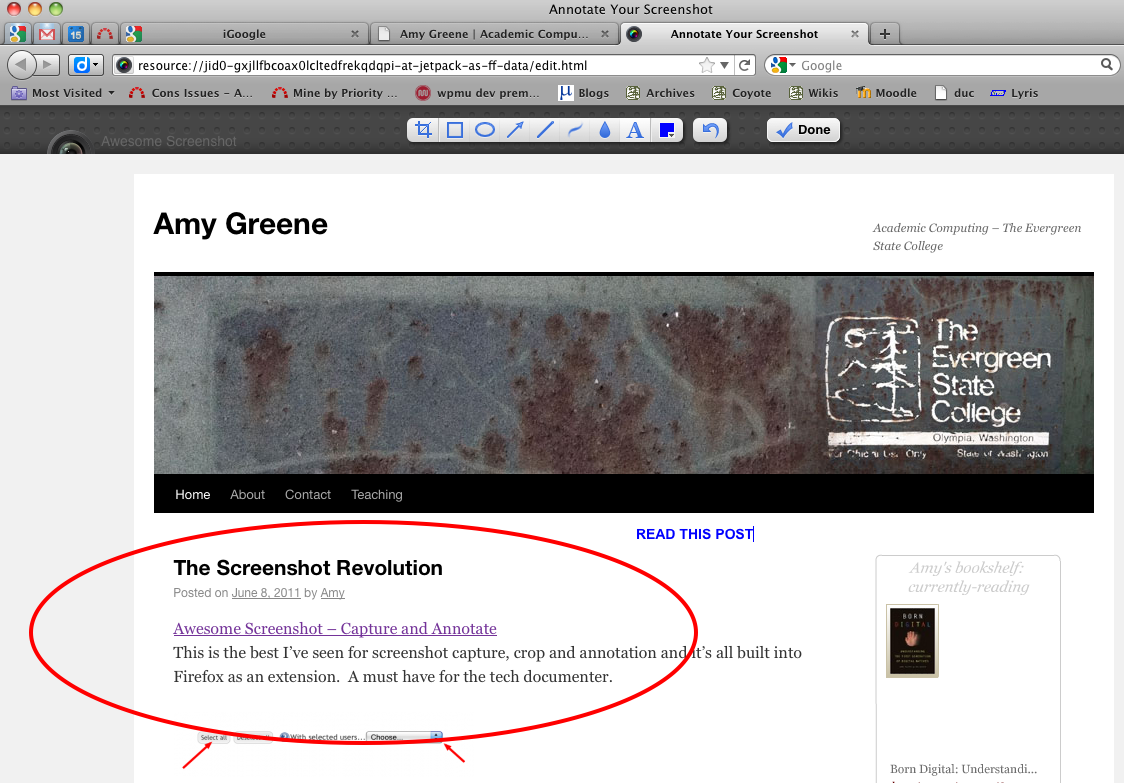
The Screenshot Revolution
Awesome Screenshot – Capture and Annotate
This is the best I’ve seen for screenshot capture, crop and annotation and it’s all built into Firefox as an extension. A must have for the tech documenter.
Social Bookmarking – Diigo or Zotero
Evergreen’s Academic Computing currently supports the use of Zotero for web-based bibliographic citation management. Although this tool’s focus is not social bookmarking, it does have group features like discussion forums and access to shared bookmarks and notes.
How we currently support Zotero
- installed Firefox extension in the Computer Center
- provide workshops to students
- looking in the future to running the stand-alone Zotero client app
What is Diigo?
It’s like Delicious…
- bookmarking tool – Diigo appears to be positioning themselves to pick-up Delicious users when Yahoo “sunsets” this service.
- Currently supports import of Delicious bookmarks
- similar to Delicious, Diigo uses a browser extension toolbar to create bookmarks and annotations. Minus the extension you can login and use the Diigo site to create bookmarks and browse sites via iFrames for group bookmarks and annotations
It’s like Zotero…
- can create private or public groups and share bookmarks and notes
- it does not appear to have citation management features (although community has requested)
Only Diigo…
- has an educators account that allows teachers to create student accounts and set usernames and passwords
- student accounts and activity is protected, ads are limited to educational related sponsors
- allows highlighting of website text
- creation of threaded discussion like notes (sticky notes) directly attached to websites
- profile picture attached to posts
- offline downloads of sites for reading later, iPhone/iPad app
Summary
If you want your students to manage bookmarks for later inclusion in a bibliography, Zotero is a good choice. If, however, you want students to collaboratively annotate, highlight and or discuss online the text of websites, Diigo offers a much better tool set.
If you choose to use Diigo:
- get an educators account
- make sure to get permission from all students to create accounts for them. Make sure they understand their data will be hosted outside of Evergreen’s network
- do not use their first and last name in the account creation process (Diigo is really good about emphasizing this point in the student account creation process)
- review the educator’s FAQ
- we currently do not support the Diigo browser extension in the computing labs, students will have to install the extension on their own computers, on computer systems in the Computer Center each time they log in or use the Diigo site.
- Contact me and I can show you how to set this up for your course or program
NWACC Notes: Gardner Campbell
Notes from the NWACC instructional technology roundtable Nov. 2010.
Keynote speaker: Gardner Campbell
Looking to the future of edtech tools
What does “as much chaos as we can stand” look like?
It is not…
- the constrained and metered environment of an LMS
- a place where student work is discarded like a used kleenex quarter after quarter
It is…
- on the open web (gasp!)
- educates our students about becoming informed digital citizens
- encourages students to think about digital profiles
- linked, crossed linked, rss fed, commented upon
- archived and groomed over time
What is the role of the instructional tech in this brave new word?
A consultant…
- scanning the horizon for appropriate technologies
- participation framing
- information architect
- persistent digital identities – a consistent locale from where I publish and is fed to interested/relevent locations
- in classroom…? each student has a blog, and their feeds content feeds the “mother blog” http://courseblogs.atlhub.net/
- by making our content open and commentable we can help each other archive
- Google alerts to monitor and feed phrases/names
What about the librarian? Gardner sited an example of a colleague who sees herself as an embedded librarian. Using twitter she is reading student tweets and responds on the class blog in a form of librarian jazz: interactive and dynamic.
3 possible scenarios (Clay Shirky):
- as much chaos as we can stand -
- Traditionalist approval -
the traditionalist cannot see the value of the new thing i.e. blogging is silly - negotiated transition – let the radicals do their thing along side of the LMS “continuum of innovation”
- this is still not going to get us there
How do we think big? Pay attention the the internet.
EdTech directions
Here is a presentation I gave to the Academic Computing Staff. It’s basically about where Evergreen’s curricular websites/technologies are today and thinking about how we can utilize existing technologies to make the publishing process more elegant and integrated into the work/research faculty are already doing.
This Google Notebook junky is looking for greener pastures
With Google’s announcement that there would be no further development on Notebook, a huge chunk of my personal info management world came crashing down. Reluctant to leave what I held dear, but knowing Notebook would gradually wither away, I began the search for a new notetaking/info management tool. An article at Mashable.com, 17 Noteworthy Alternatives to Google Notebook did a bunch of the research for me. Currently I’m thinking of making the jump to Evernote if the iPhone app is as good as they say it is. Mobile notetaking, mmmm.
Ferrofluid dynamic scultpures
Sachiko Kodama, Yasushi Miyajima
“Morpho Towers — Two Standing Spirals” (2006-2007)
“Morpho Towers–Two Standing Spirals” is an installation that consists of two ferrofluid sculptures that moves synthetically to music. The two spiral towers stand on a large plate that hold ferrofluid. When the music starts, the magnetic field around the tower is strengthened. Spikes of ferrofluid are born from the bottom plate and move up, trembling and rotating around the edge of the iron spiral… In this work, we are trying to activate analogue physical phenomena (= fluid) precisely by utilizing digital music metadata. To control the synchronization of the ferrofluid with the music playback in real time, time series metadata are added to the music beforehand. The metadata consist of musical information, such as beat position, chord progression, and melody block information, and ferrofluid control information such as DC bias voltage and AC pattern. Each data record has a time stamp that indicates the timing of presentation. All data are stored in time-series order.”